B2 Installing Python
0. Preface
This article introduces the official Python runtime. Choose a supported stable release from the official downloads page , rather than the end-of-life Python 3.7 or 3.8 releases. The screenshots below show an older installer; version numbers and interfaces may differ.
Not just Python, but any complete application consists of many files. Therefore, professional programmers need professional IDE tools, such as VsCode, PyCharm, which provide project management, text formatting, auto-completion, and other functions.
Since this installation is simple, we’ll start with this. Other installation methods will be introduced later.
1. The Official Python Website
It is not recommended to search for Python installation files on Baidu or download Python installation files from any third-party websites. If needed, you should directly visit the official website. The reason for this is that you can’t guarantee the most secure version. If you download version 2.0, the difference is like two different programming languages. There are even rumors that some people downloaded Python, but after installation, it turned into a hot mess, and they never learned programming again. The website is as follows:
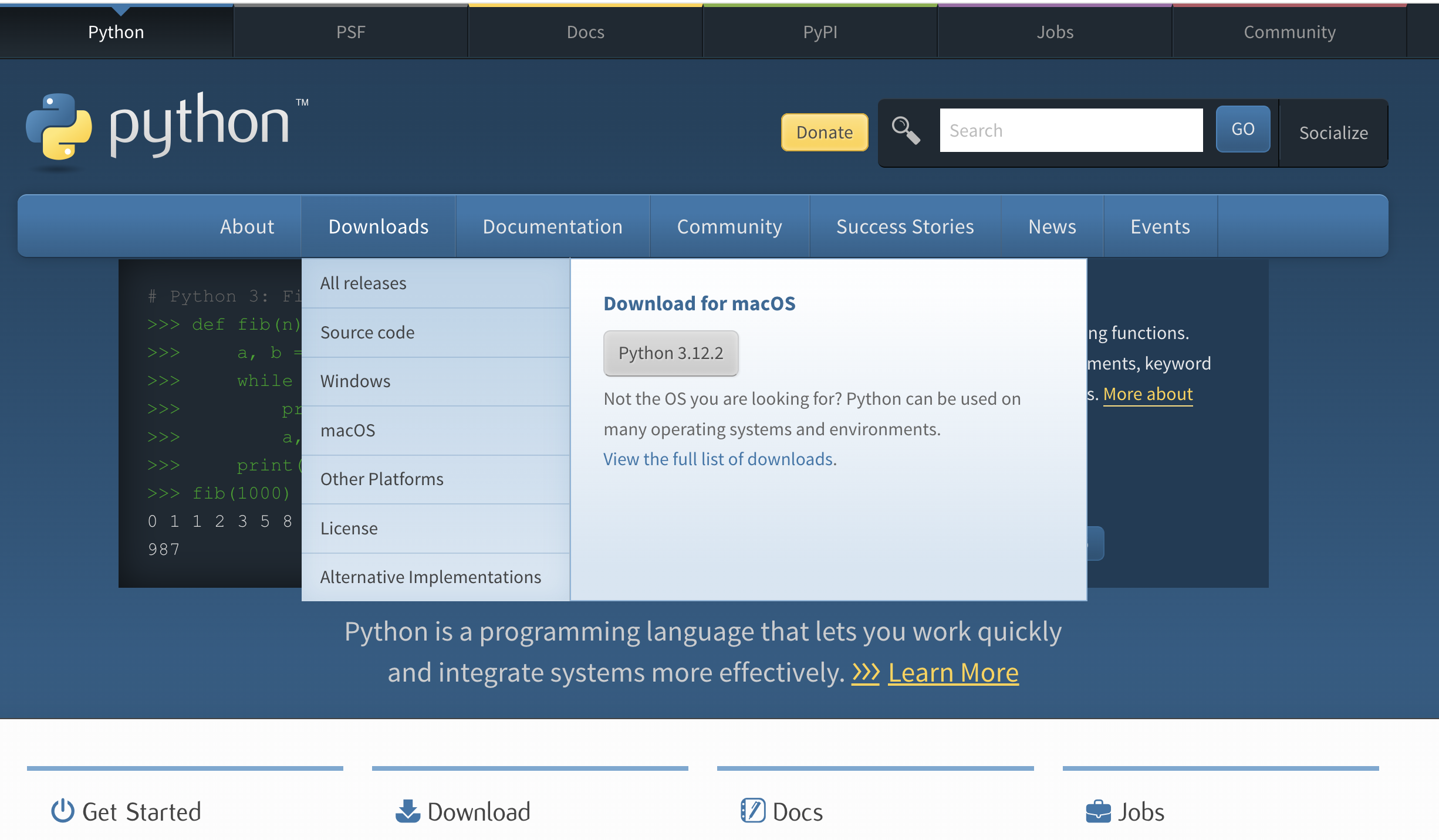 Figure 1 The official website download page
Choose a Supported Version
Select your operating system in the Downloads menu and check the installer’s system requirements. Use a supported stable release on a supported operating system. Choose an installer matching your processor, usually x64, or ARM64 for an ARM computer. Older Windows systems may require an unsupported interpreter; this is not the default recommendation for beginners.
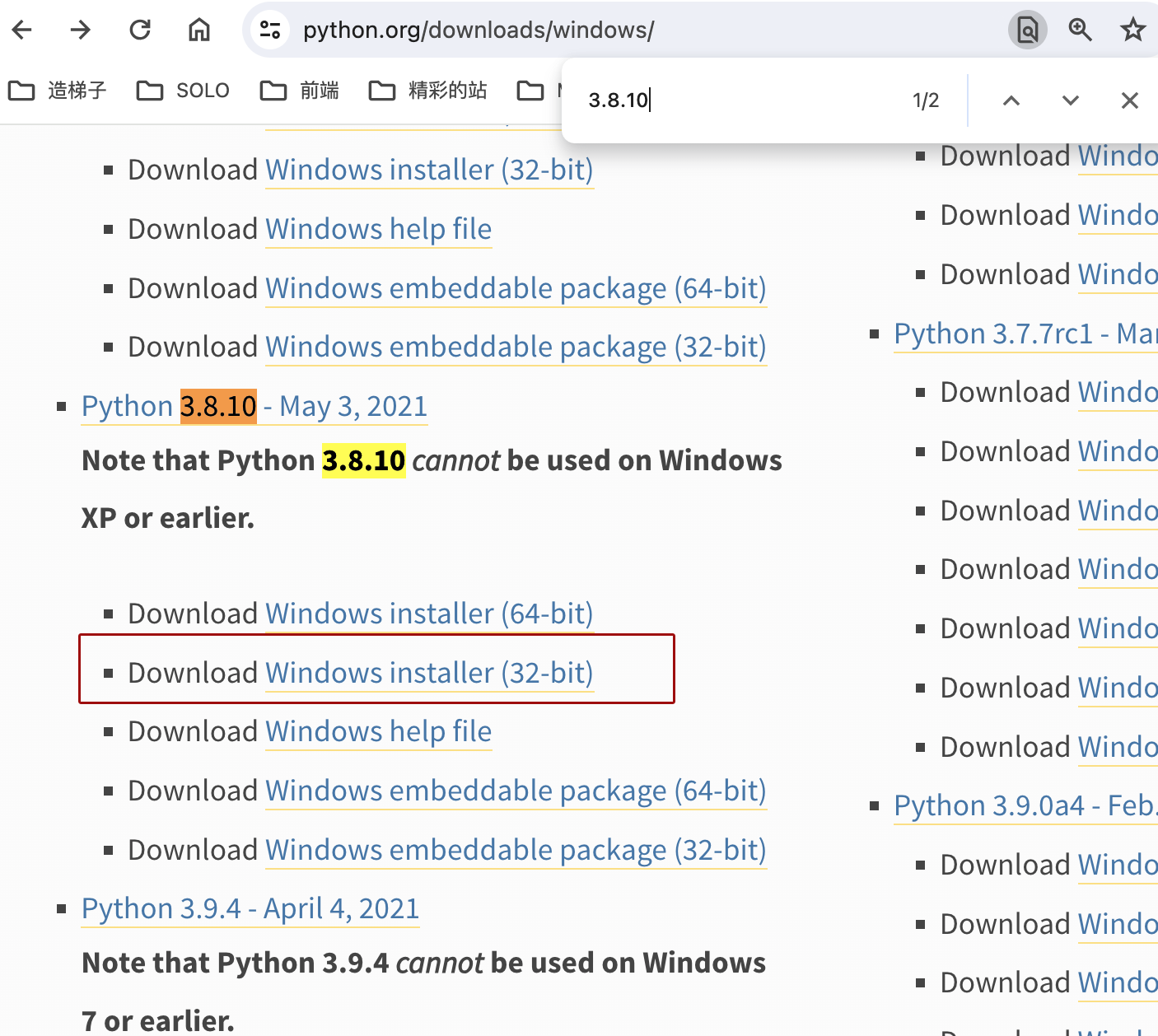 Figure 2 Windows installation file
Mac Computers
If you are using MacOS, it is recommended to install the latest version.
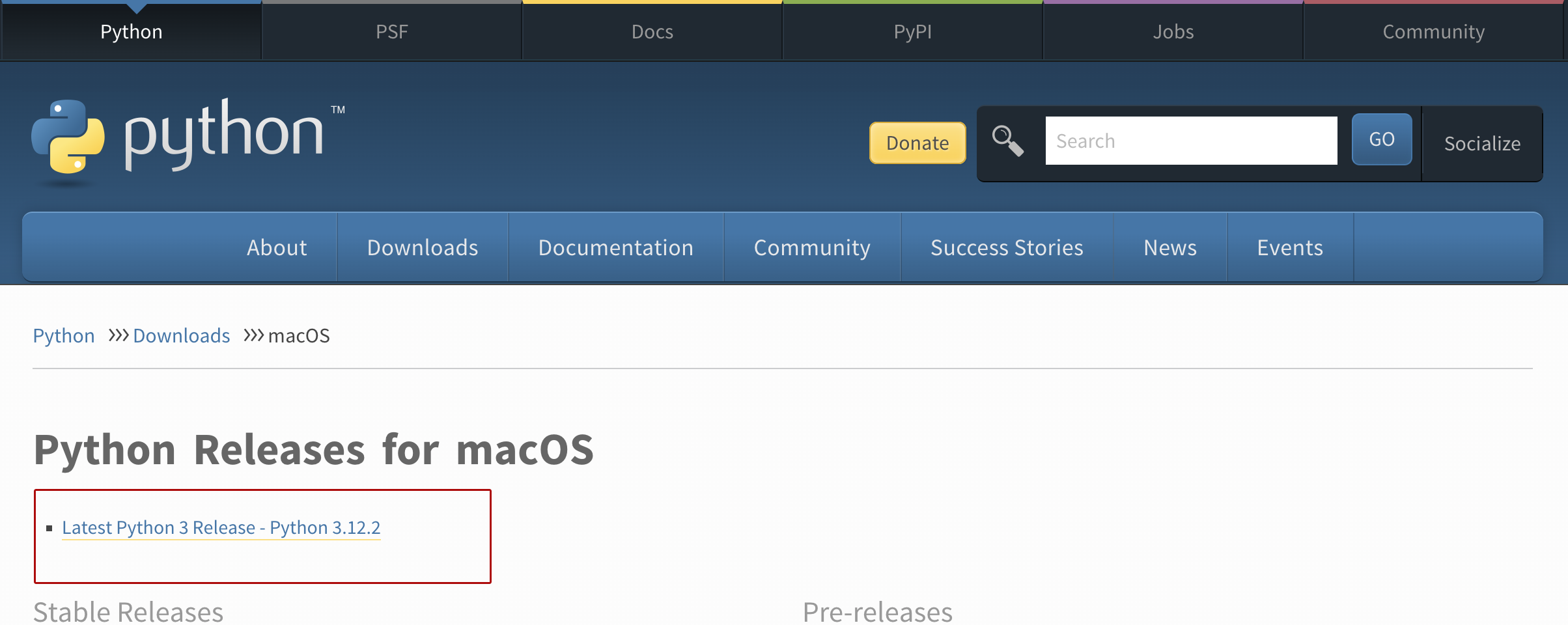 Figure 4 Mac system installation file
2. Installing Python
Run the downloaded installation file to install. As shown in the figure below, you need:
Check both of the following options
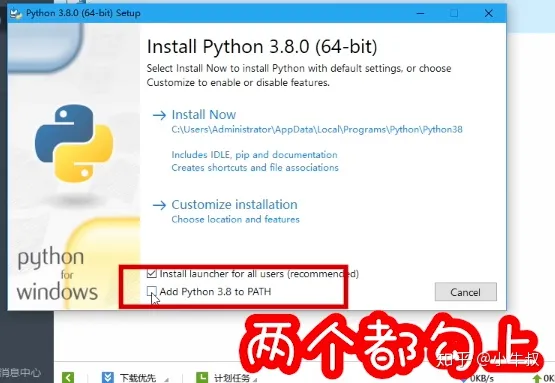 Figure 3 Installation options
For a traditional installer, select Add Python to PATH. If using the newer official installation manager, follow its setup instructions so that editors and command-line programs can find Python.
3. IDLE Environment Verification
Many beginners finish the installation at this point, but you should verify the following two functionalities. If they are not successful, it means there was an issue with the previous steps. Please uninstall, check the options as per this article, and install again.
Open IDLE for the version you installed from the Start menu. IDLE provides basic editing and an interactive Python shell.
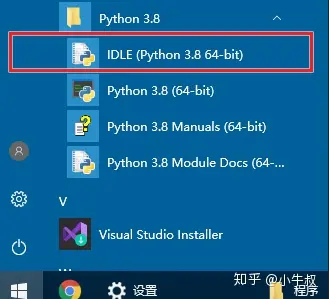 Figure 4 Launching the native editor IDLE
The Python Manuals menu item opens the language guide for your installed version. You can also read the official documentation .
The image below shows the IDLE interface, with the >>> prompt indicating we have entered Python’s runtime environment.
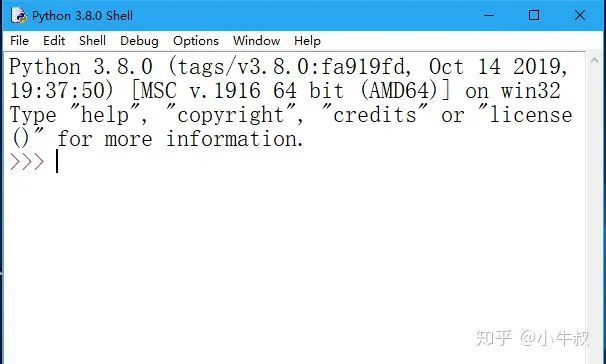
After opening, we enter the following statement
1+1
See if it returns 2. GOOD, congratulations, you’ve learned addition!
Python 3.8.10 (tags/v3.8.10:fa919fd, Oct 14 2019, 19:37:50) [MSC v.1916 64 bit (AMD64)] on win32
Type "help", "copyright", "credits" or "license()" for more information.
>>>1+1
2
After successful verification, let’s see how to run Python source programs in the command line.
4. Running Python in the Command Line Environment
Follow the steps below to open the Windows command line environment. Right-click the Start Menu -> “Command Prompt (Admin)” to open the command line as shown below. For convenience in running programs in the future, we right-click the start menu.
In the command line, as shown in the image below, enter the following command. This is a copy command, used to copy from the console to a file named test.py. In layman’s terms, it’s creating a new test.py file.
copy con test.py After entering this command and pressing Enter, the DOS command prompt disappears. Enter the following Python program:
print('Hello World!')After typing, press Enter, then press Ctrl+Z on the keyboard, and press Enter again to save the file.
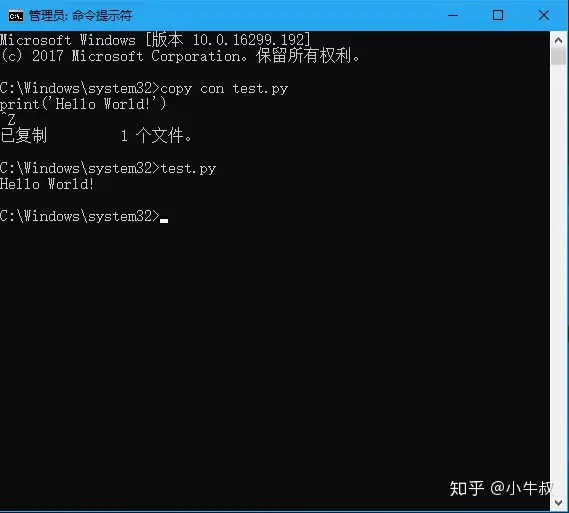 Command line verification
As shown above, after creating a Python program, run it directly in the command line by entering the file name test.py. If you see the program’s output, “Hello World!” it means the verification was successful. If there are issues, reinstall the file as described above.